
Your library
Browse, search and organize your music, and see what you've been listening to.
Browsing
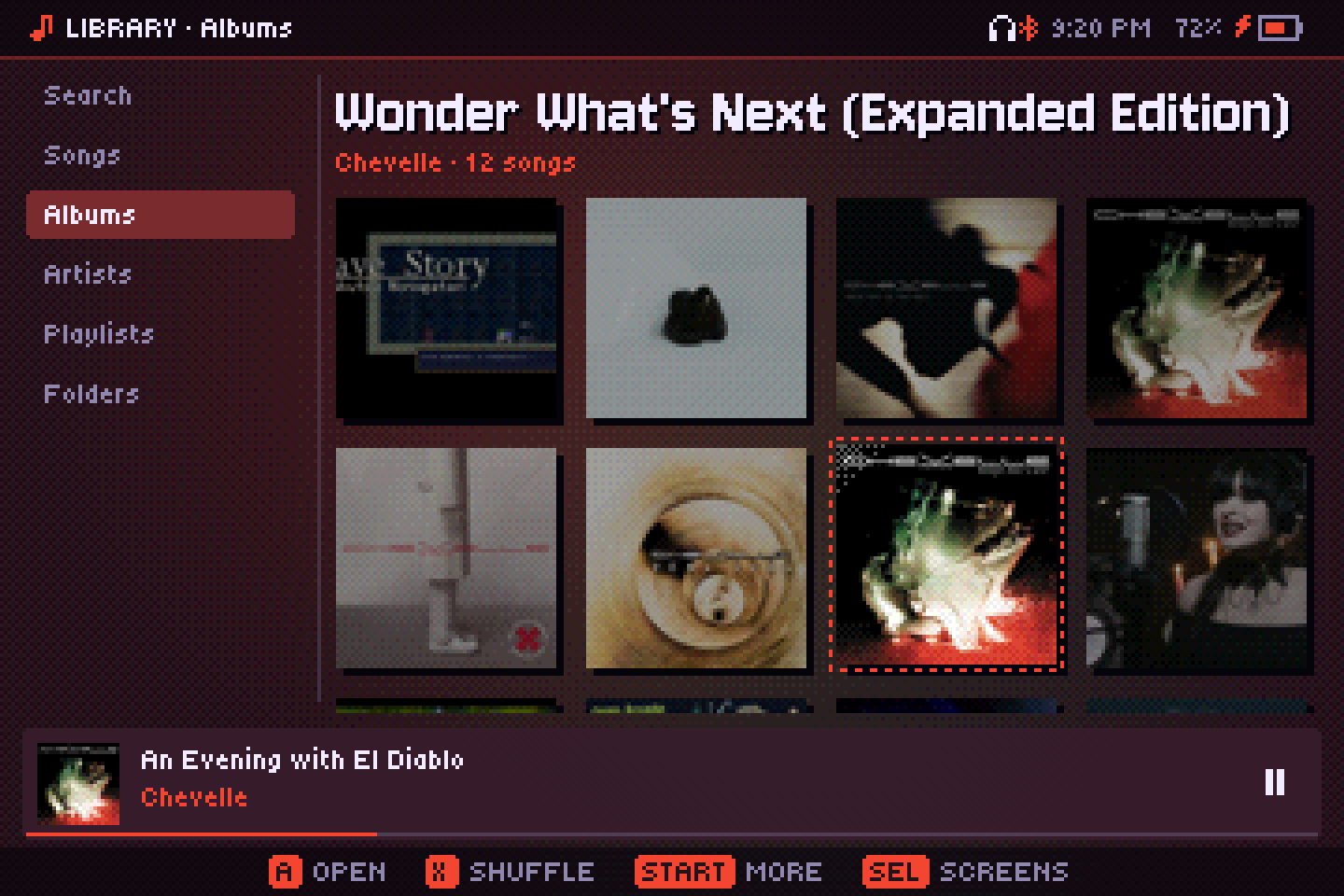
The Library has tabs on the left: Search, Songs, Albums (a grid of covers), Artists, Playlists and Folders. A opens or plays, X plays shuffled, and pressing X twice plays a random song from the whole library. L1/R1 jump by letter. START on any item opens its menu: Play, Shuffle play, Play next, Add to queue, Go to album, Go to artist, Add to a playlist, Like and Rating.
Search
Search looks through song titles, artists and albums. Type with the on-screen keyboard (A types, B deletes, X adds a space, Y clears) or a real keyboard. Filters under the box (L1/R1): All, Library, YouTube (if YouTube Music is set up) and Modules, which searches the online module archives (see Modules).
Playlists
.m3uplaylists in your music folder show up in Playlists.- Your own playlists are saved as
.m3u8files indata/playlists. Create one with START on the Playlists tab, or with Add to a playlist on any song, album or artist. Save queue as playlist (Now Playing's More menu) keeps what's in the queue. - Inside your own playlist, a song's menu can move it up or down or remove it; the playlist's menu renames or deletes it.
- Playlists on a Subsonic or Jellyfin server can be edited too; see Servers.
Liked, Recent, Most played and Stats
The Playlists tab starts with lists that build themselves:
- Liked: songs you liked with Like (newest first). A liked song shows a heart on its cover in Now Playing.
- Recent: the last 100 different songs you listened to.
- Most played: your top 100.
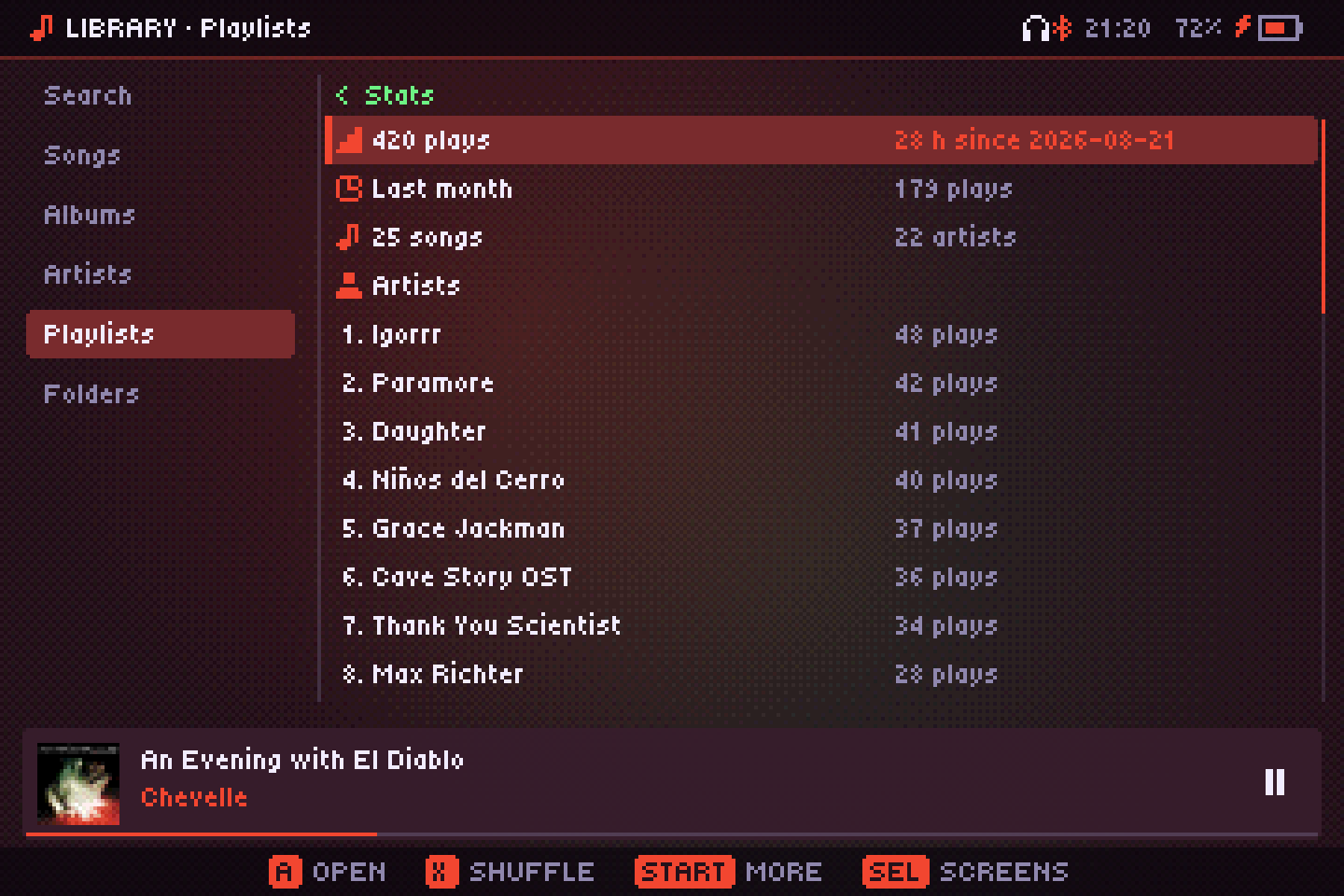
- Stats: total plays and hours, the last month, how many songs and artists, and your top artists, albums and songs. A on a top song plays it.
A song counts as listened once half of it has played (or four minutes), whether the player was open or not. Rating goes from 1 to 5 (each A moves to the next value). Likes and ratings of songs from a Subsonic or Jellyfin server are also sent to the server; see Servers.
Smart playlists
After the lists above come smart playlists, which fill themselves from rules each time you open them. Ready-made ones: Most played (30 days), Recently added, Never played, Liked, Top rated, Forgotten favorites (songs you played a lot but not in the last three months) and Random mix (today), which changes once a day.
- START on the Playlists tab → New smart playlist opens its editor: Add a rule (pick a field, a condition and a value), Match all rules or Match any rule, Sort and Limit, then Save and name it. Picking a rule in the editor removes it.
- Fields: title, artist, album, album artist, genre, year, length, format, bitrate, folder, path, track number, when it was added, plays, last played, liked and rating. Conditions depend on the field: is, contains, starts with, more/less than, between, in the last … days and so on.
- A smart playlist's menu has Edit rules, Rename and Delete playlist. They're saved in
data/smart.json. - Genre, year and date added come from the library scan; the first scan after updating reads every file once to get them.
Tags, covers and MusicBrainz
The START menu of a song, album or artist in your own library (files on the SD card or disk, in MP3, FLAC, Ogg, Opus or M4A) has tools to fix their details. Long jobs run in the background and show in Downloads.
- Edit tags (a song): title, artist, album, album artist, genre, year, track and disc. Pick a field to type it, then Save to the files. Album tags changes album, album artist, genre and year for every song of the album at once.
- Find cover (an album): looks it up on MusicBrainz's Cover Art Archive, then iTunes, and offers Save in the folder (as
cover.jpg), Embed in the files or Both. - Look up on MusicBrainz (an album): lists matching releases (title, year, country, tracks, label); pick one and it shows how many of your songs match by track and length, then Apply or Apply with the cover writes the right titles, artists, numbers, year and genre. Songs that don't match are left alone.
- Compute ReplayGain (song, album or artist): measures how loud each song is and writes its ReplayGain, for the songs that don't have it; see Sound.
Only the tags change: the audio in the file stays exactly as it was, and the library picks up the changes right away.
Formats
| Kind | Formats |
|---|---|
| Audio | MP3, AAC/M4A, ALAC, FLAC, Ogg Vorbis, Opus, WAV, AIFF, DSD (DSF and DFF) |
| Tracker modules | MOD, XM, IT, S3M (and a few more) |
| Console music | NSF/NSFE (NES), SPC (SNES), GBS (Game Boy), VGM/VGZ and GYM (Genesis, Master System, arcades), HES (PC Engine), KSS (MSX), AY (ZX Spectrum), SAP (Atari) |
| 8-bit computers | SID (Commodore 64), YM (Atari ST), VTX and PT3 (ZX Spectrum) |
| Lists | M3U/M3U8 playlists, CUE sheets |
Console music
Console music files aren't recordings: they carry the game's music code, and Audiofilus emulates the console's sound chip to play them. A file with a whole soundtrack (an NSF usually holds every song of a game) shows up as one track per song, with the game as the album and the composer as the artist. Songs that loop forever last what the file says (or 2.5 minutes) and fade out at the end. SID, YM, VTX and PT3 files from 8-bit computers work the same way, with nothing to install: Audiofilus emulates the Commodore 64's SID and the AY/YM chip itself. If you keep the whole HVSC collection, each SID song lasts what its Songlengths.md5 says; otherwise, 3 minutes.
CUE sheets
An album ripped to a single file with a .cue sheet next to it shows up as its separate tracks, with their titles. The big file itself is hidden.
Colors
The interface takes its colors from the cover of what's playing.