
Your music keeps playing while you game.


audiofilus is a pixel-art music player with album covers, visualizers, six arcade games and a chiptune tracker. Close it, open an emulator, and the music goes on. Turn the screen off and control it from your pocket.
Knulli · muOS · ROCKNIX · ArkOS · dArkOS — also on Linux and Windows desktops.

- MP3
- AAC / M4A
- ALAC
- FLAC
- Ogg Vorbis
- Opus
- WAV
- AIFF
- MOD · XM · IT · S3M
- M3U playlists
A player that stays out of the way
The audio lives in its own service
The interface is just a remote. Close it and the music keeps going; launch a game and it still plays, with gapless track changes and a quick fade when you pause.
Controls from inside any game
Hold FN and tap a button to pause, skip, go back or seek. Your headphones' play button works too, over Bluetooth or cable: one press pauses, two skip, three go back.
Sleep mode for your pocket
Press START twice or the power button: the screen turns off, the CPU slows down and the triggers become gestures. Close the lid and it stays asleep. On an RG34XX-SP it draws about 260 mA in this mode: around 11 to 12 hours of music on its 3300 mAh battery.
Help is one button away
Hold FN on any screen to see what every button does there.
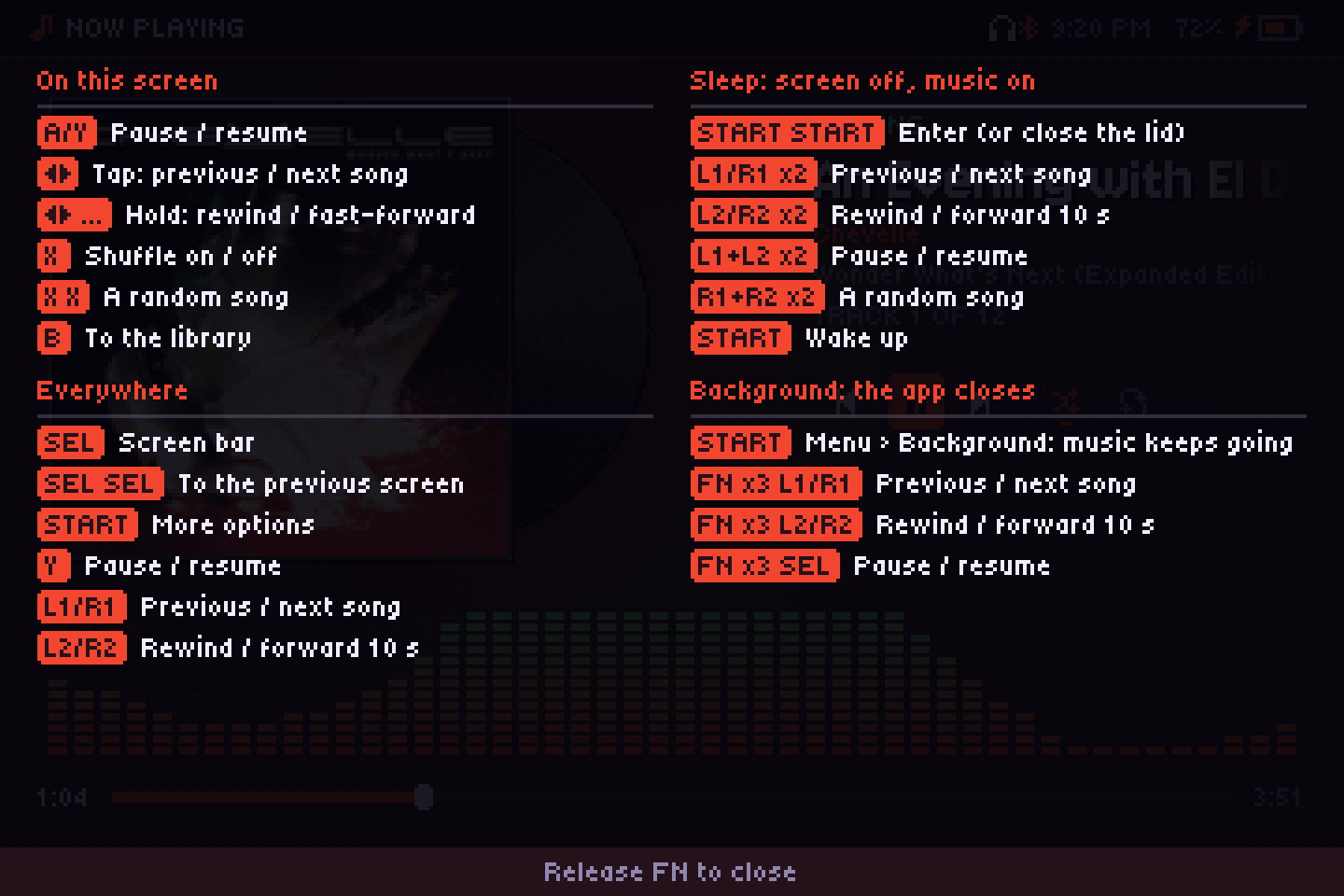
The controls guide, shown while FN is held.
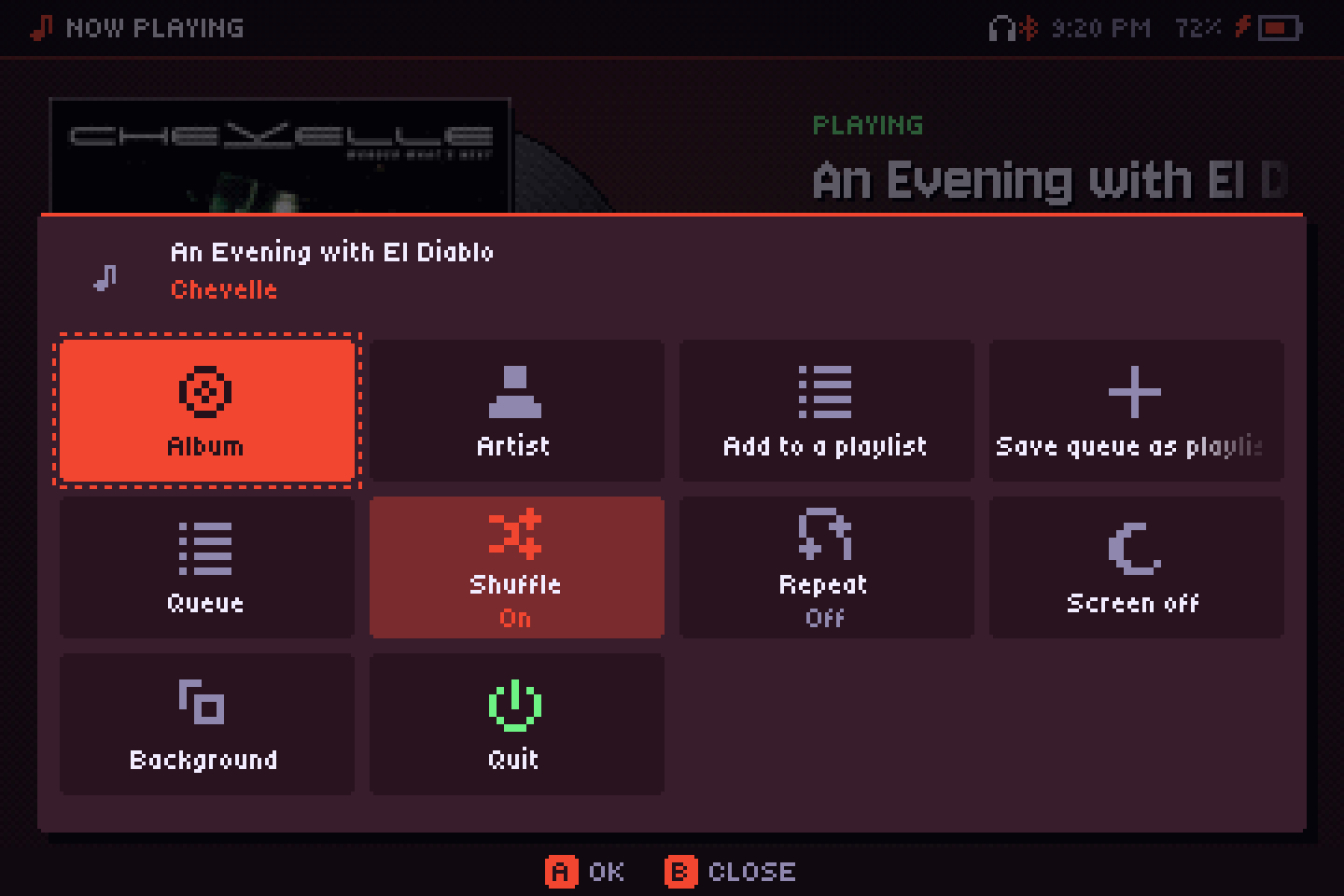
START opens the More menu, including “Background” to leave the app and keep listening.
Something to look at



Seven visualizers that follow the beat, all drawn at low resolution and kept light on the CPU. Colors come from the album cover.






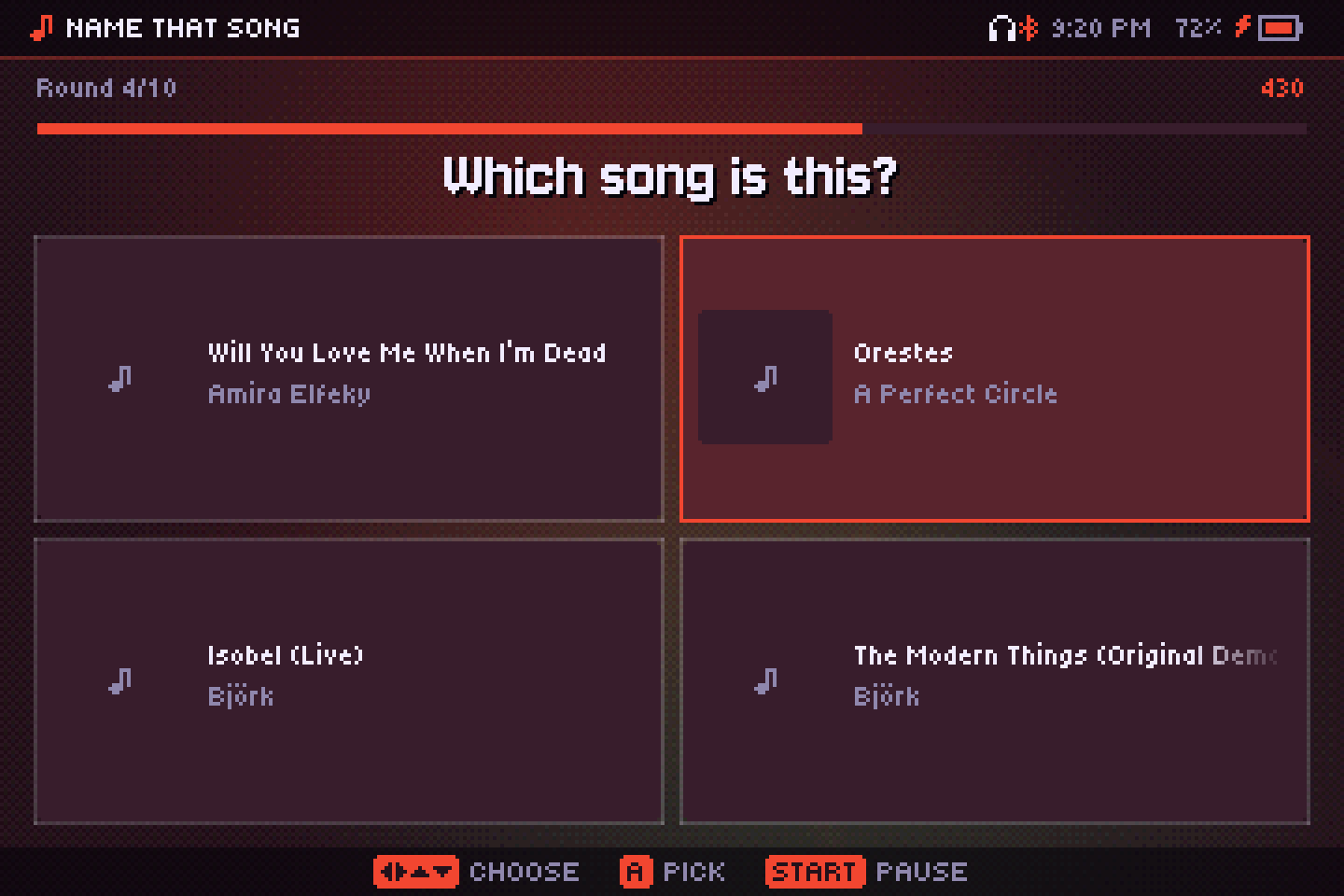

Make your own chiptune
A Game Boy style tracker for the D-pad: two pulse channels, a triangle and noise, 16-step patterns with arpeggios, duty and pitch bends, and a song order. Export a song as WAV and it lands in your library, ready to play in the background like anything else.

The games and the tracker live behind one Games entry in the screens dock, each game with its own record. And there are a few secrets hidden around the app.
Every album paints it

The interface takes its colors from the cover that's playing. Change the album and the whole player, the visualizers and the games follow.
Shown with four albums from a real library: each cover gives two accents and a tint for the background.
Your files, your server, the radio
Everything shows up in the same library and the same player. Remote songs are cached on the SD card so the next listen is free.
Your library
Folders, tags, embedded and folder covers, M3U playlists and your own playlists. Scanned once, then only new files are read.
Subsonic
Navidrome and other Subsonic or OpenSubsonic servers. Songs stream, stay cached for the next listen, and can be downloaded.
Jellyfin
Sign in with your Jellyfin user and browse its music library and playlists like your own files.
Internet radio
Thousands of stations from radio-browser.info, by country or genre, with the current song title from the stream.
Podcasts
Top shows for your country, search, or any RSS feed by address. Episodes download for offline listening and remember where you stopped.
YouTube Music
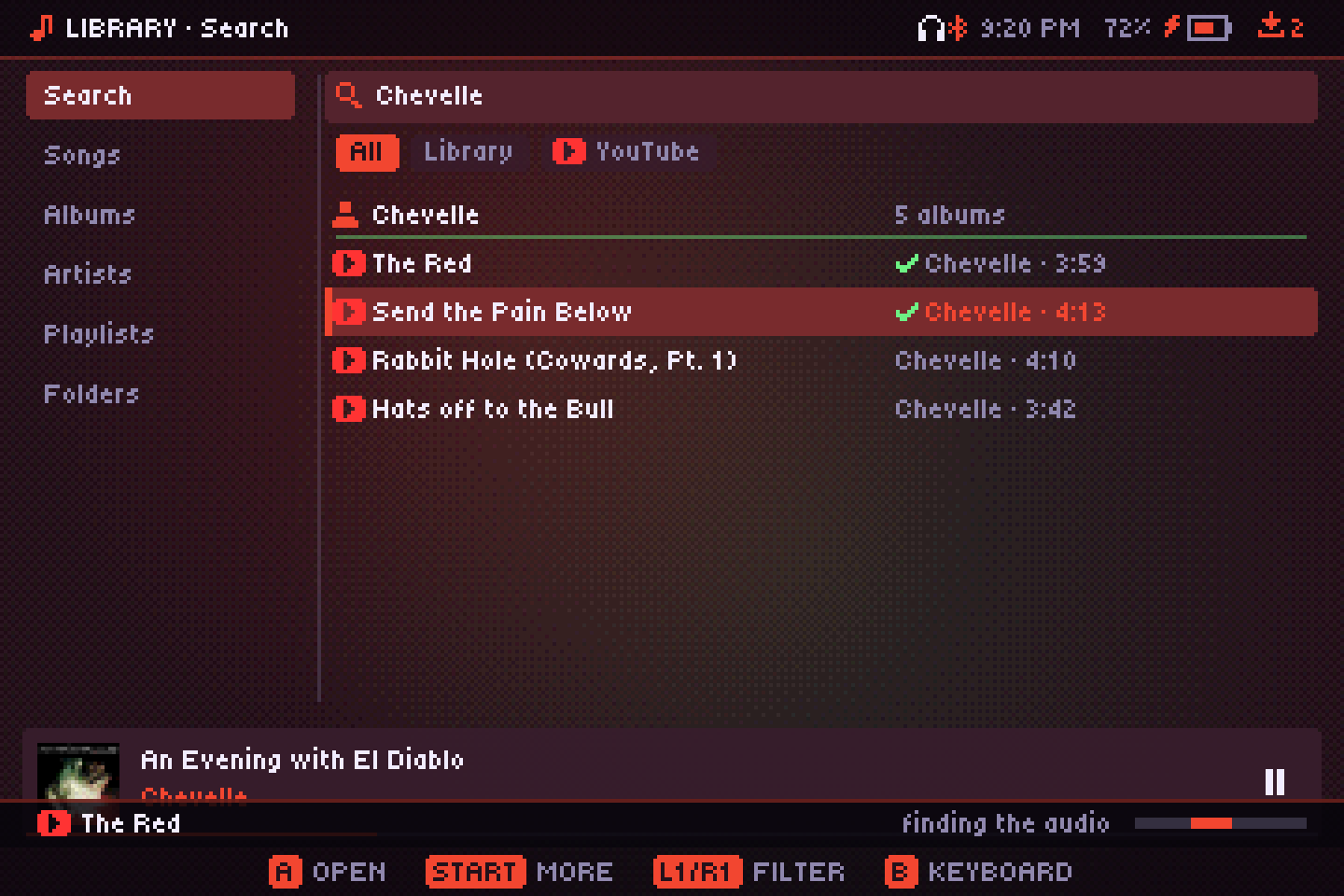
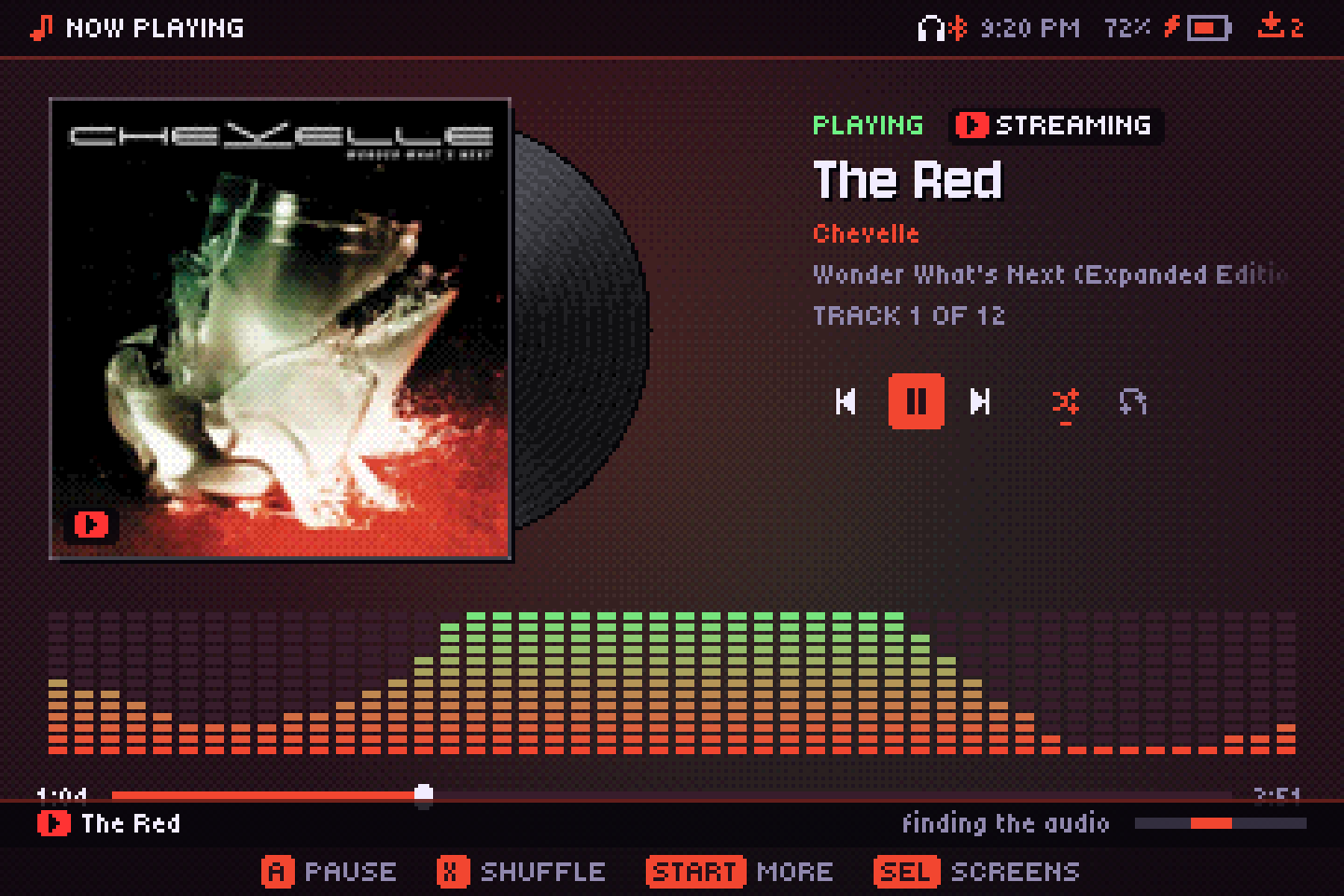
Copy your own yt-dlp next to the app and search appears: listen without downloading, or save songs into your library with cover and tags.
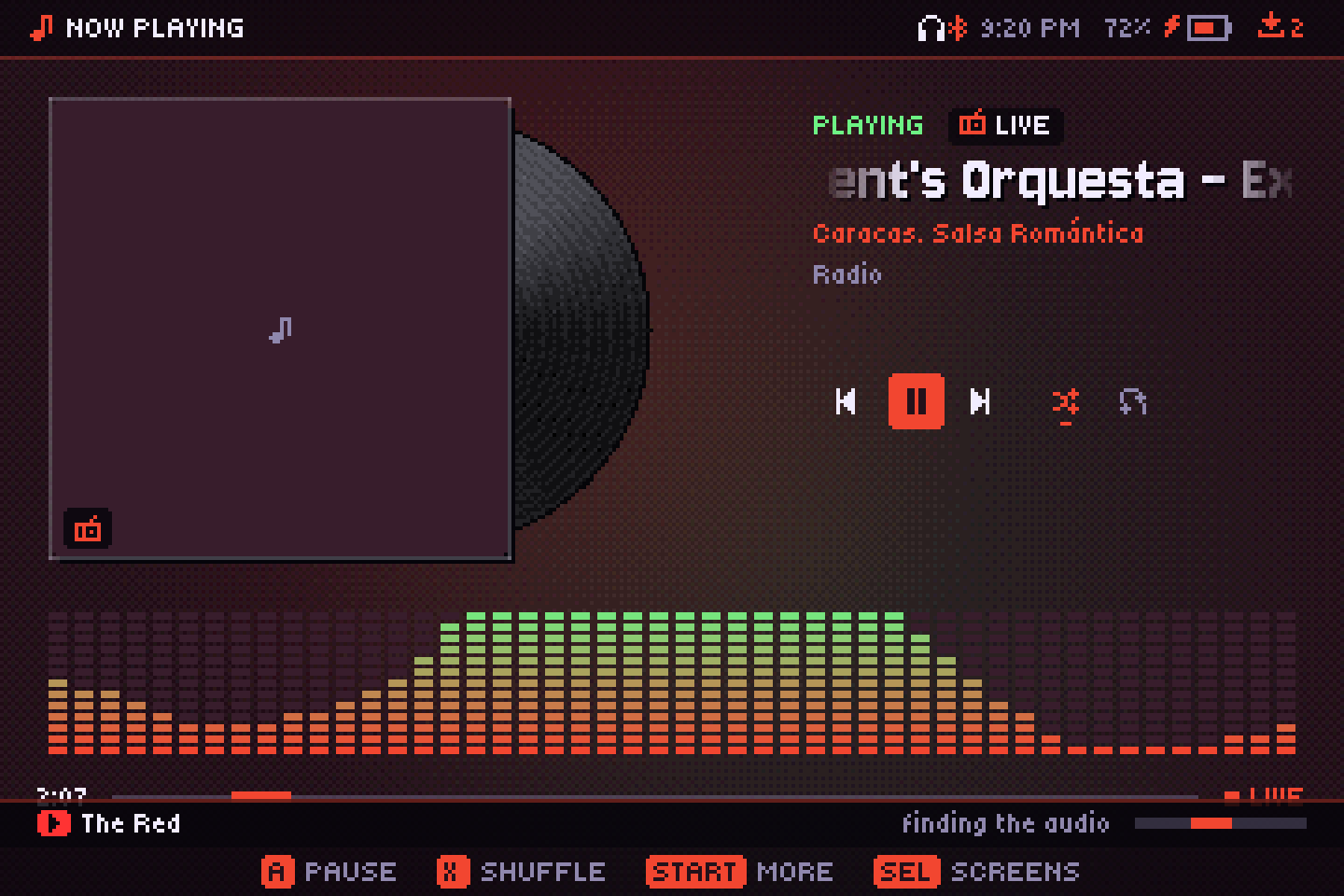
Made for a D-pad
SELECT opens a dock with every screen; press it twice to jump back to the last one. A QWERTY on-screen keyboard handles search and playlist names. Interface sounds are optional, in two separate switches for menus and for music actions.
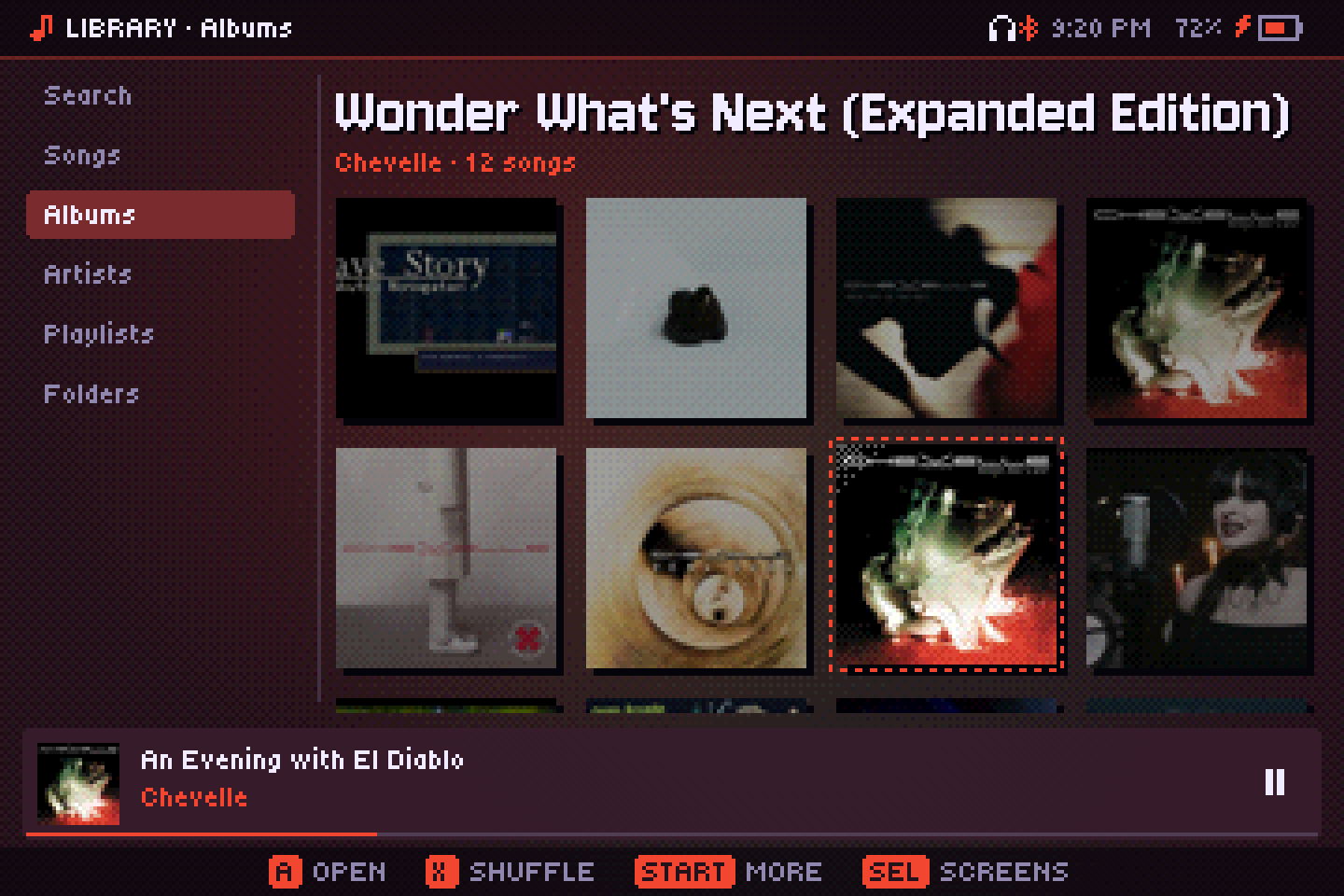
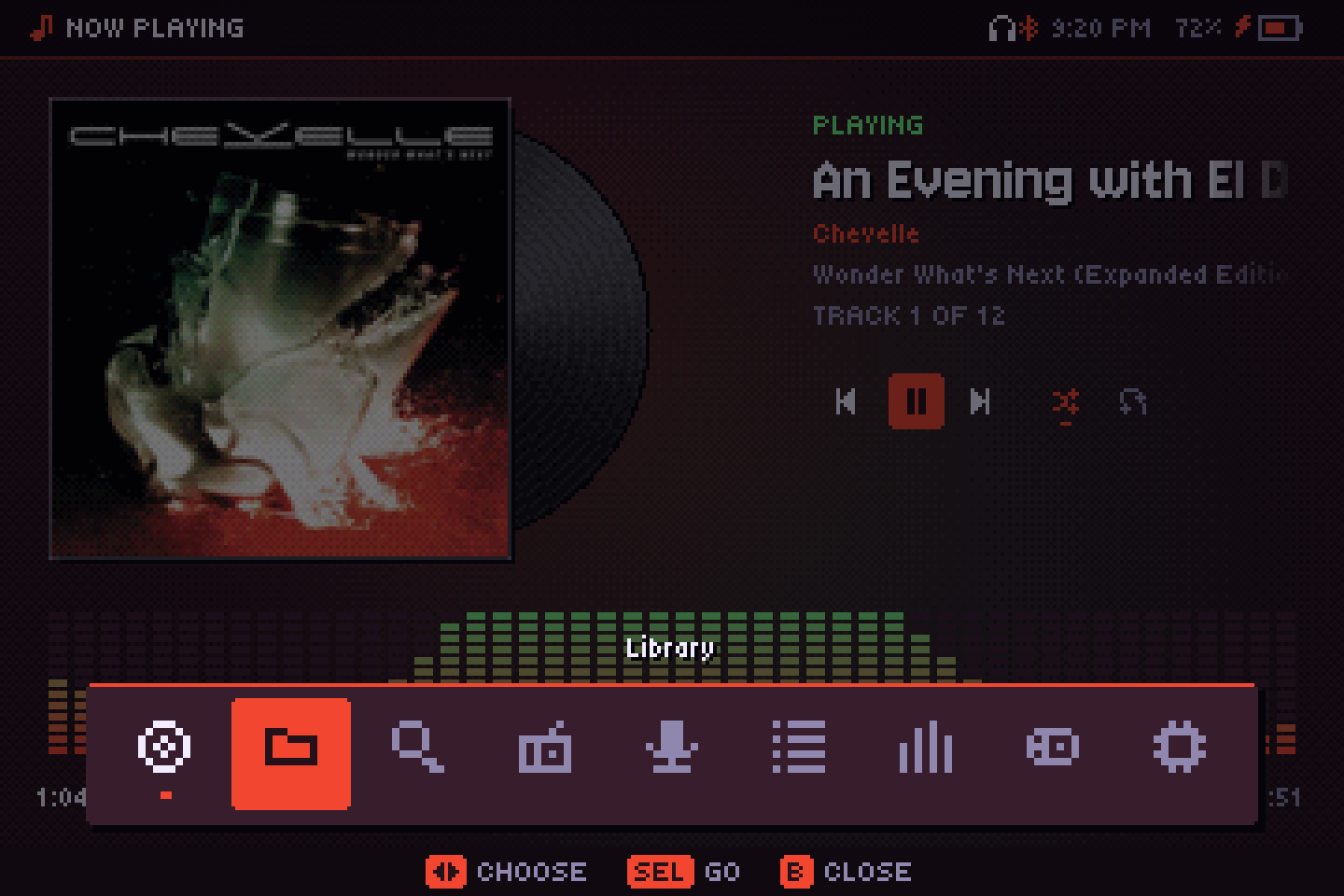
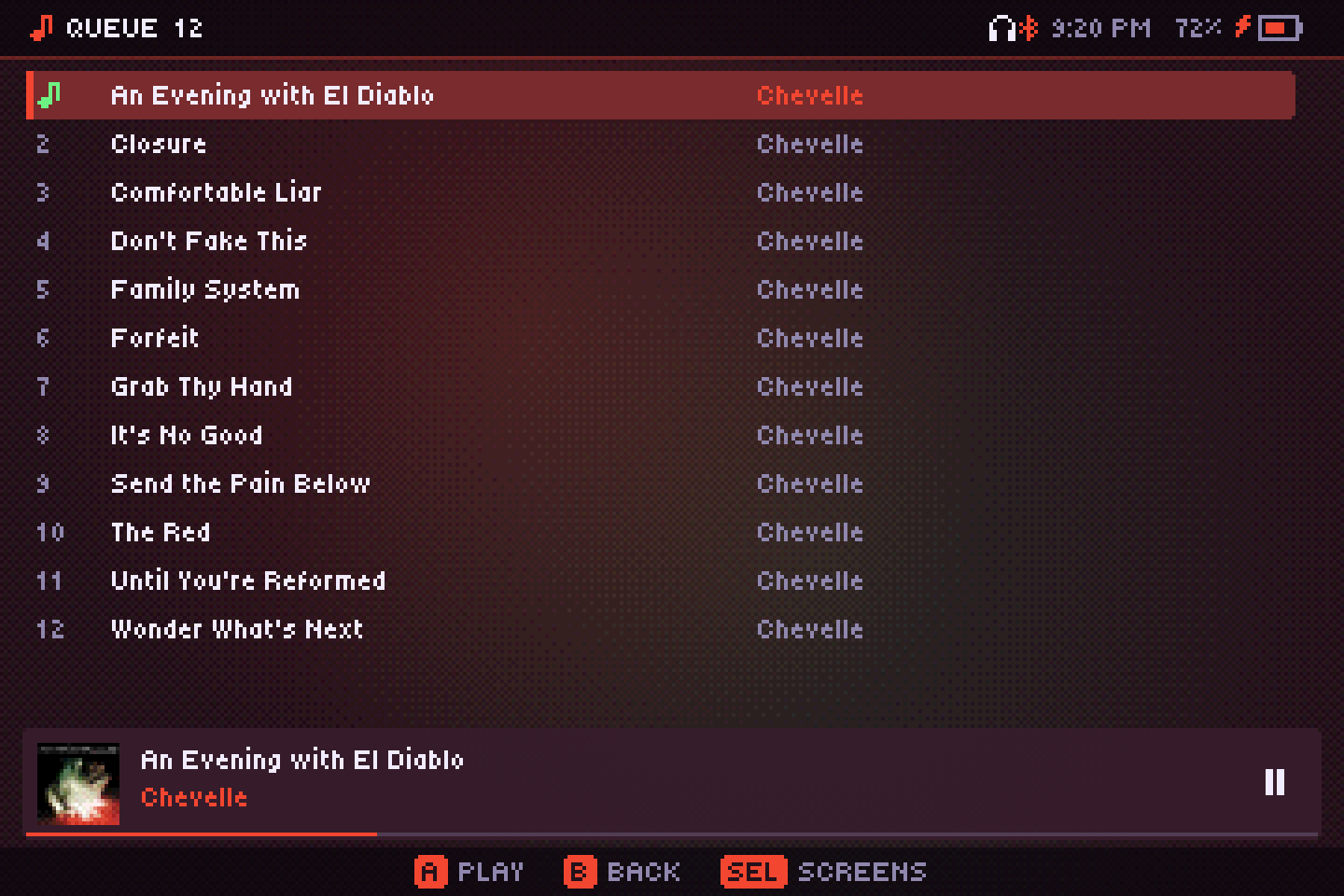
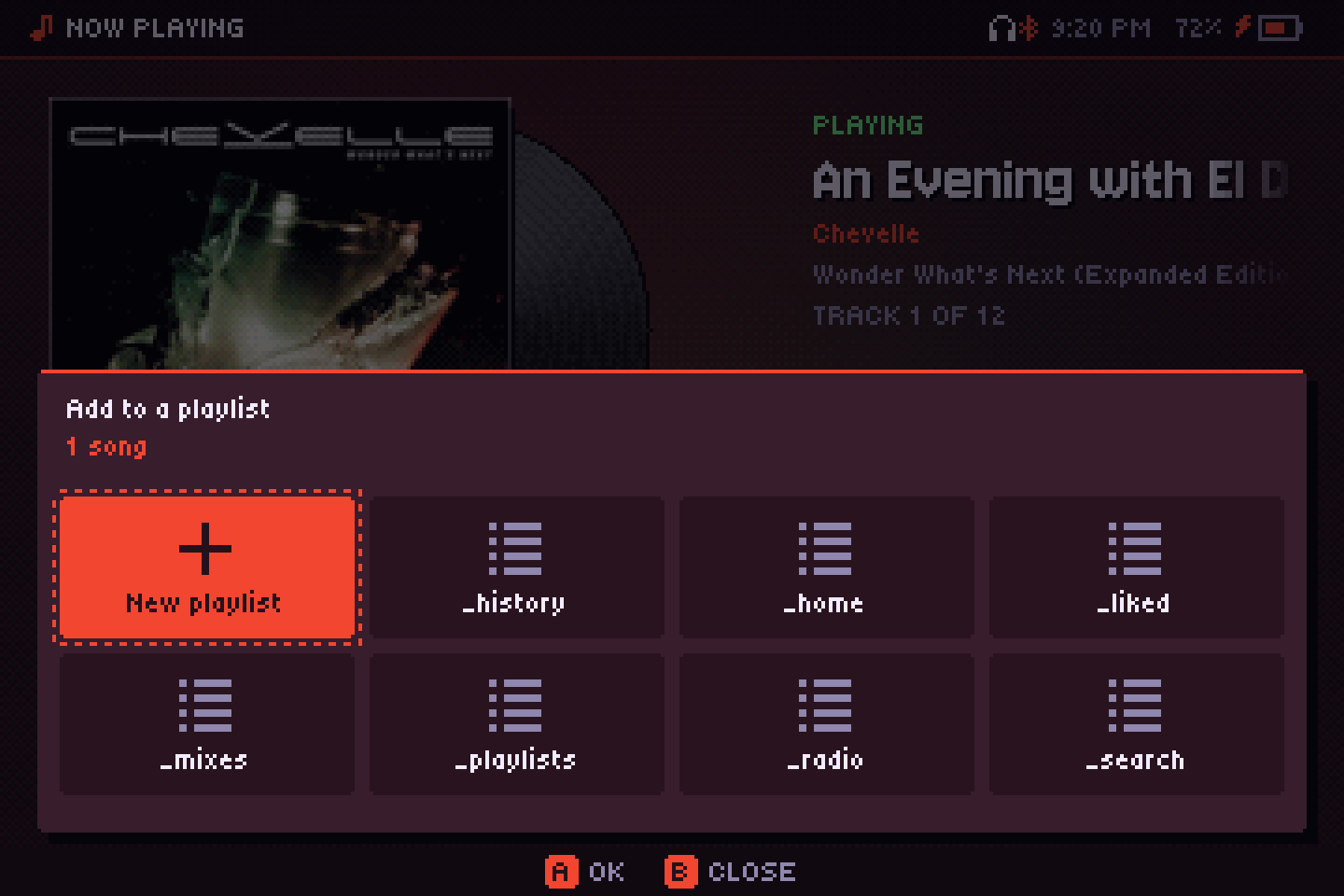
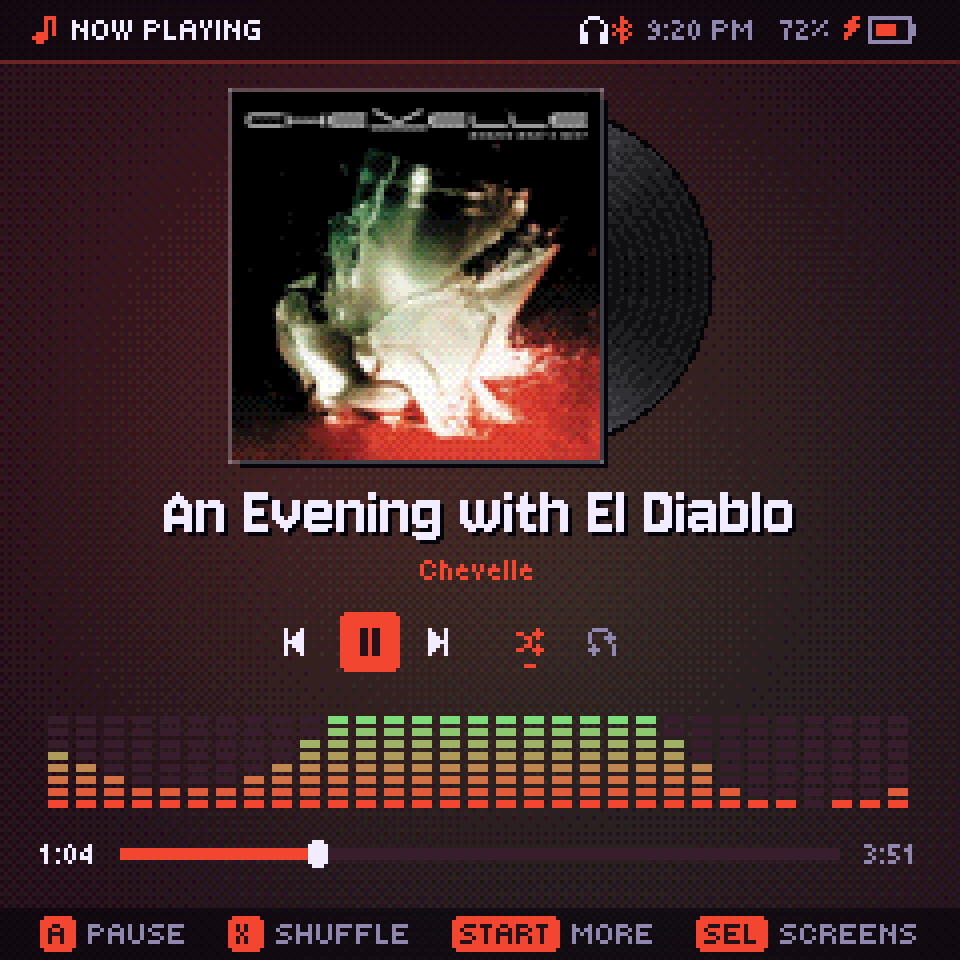
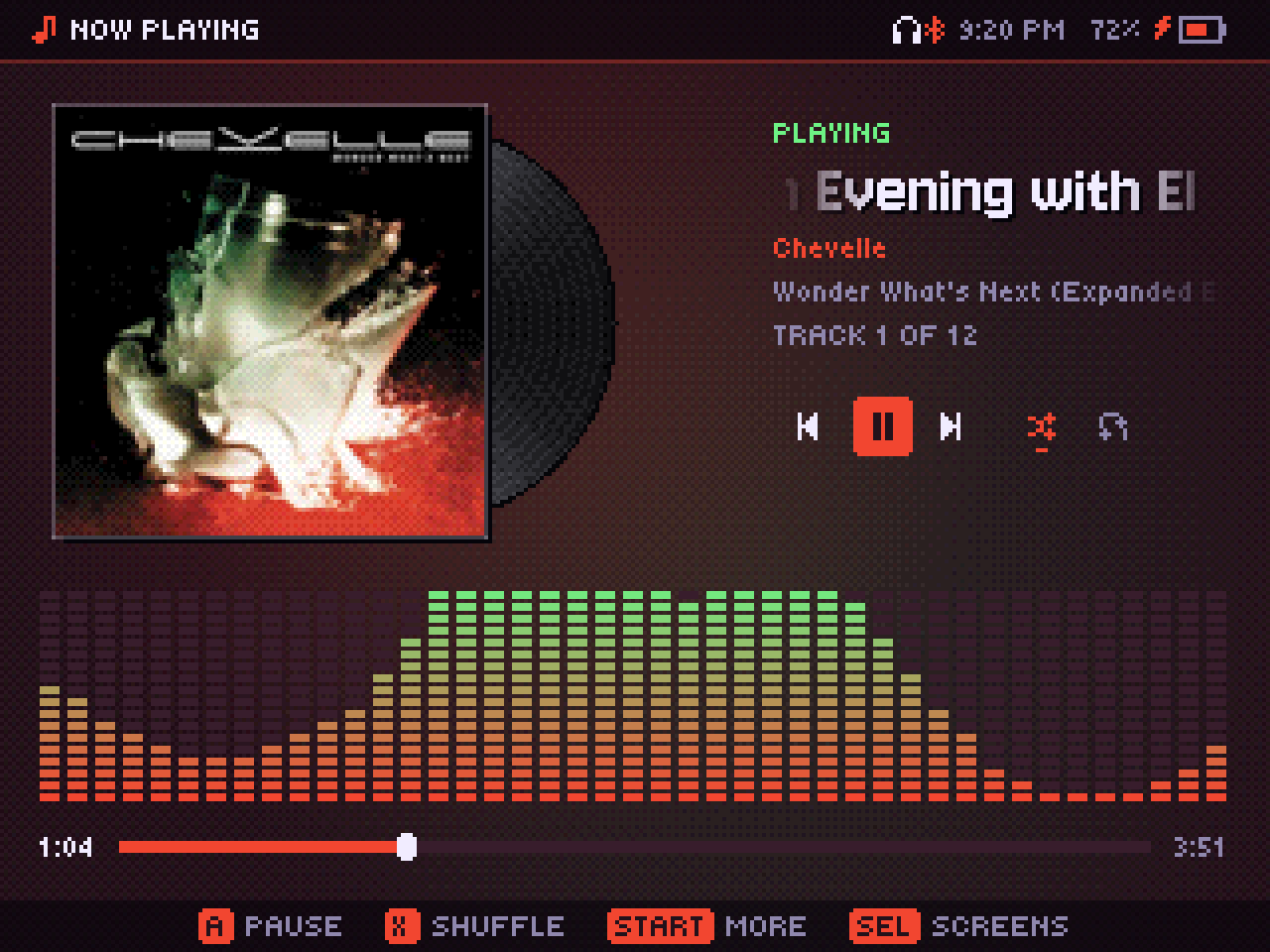
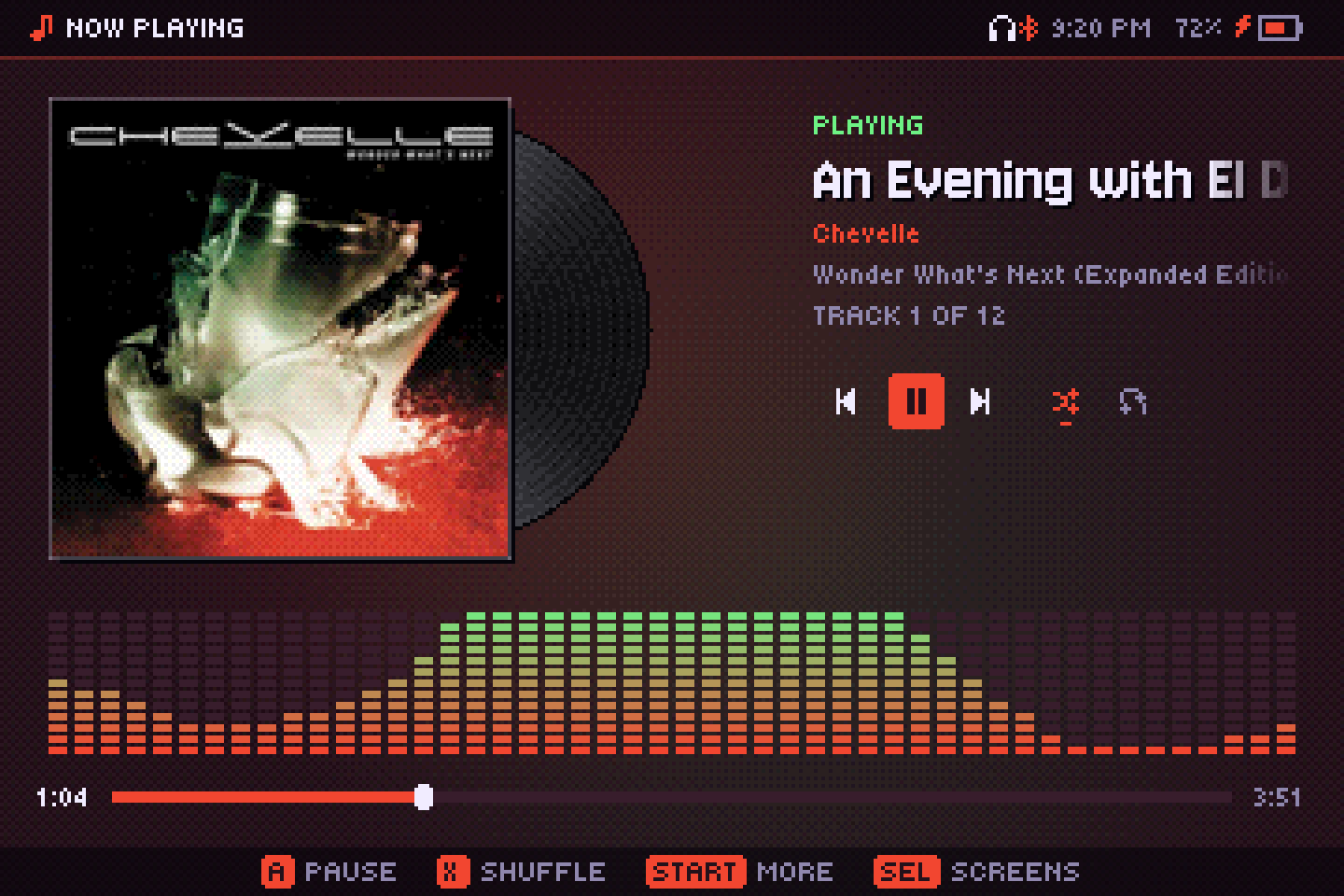
From square to ultrawide
The layout adapts to the screen's real width instead of picking from a few fixed shapes, so it fills a 1:1 RGB30, a 3:2 clamshell and a 21:9 monitor.
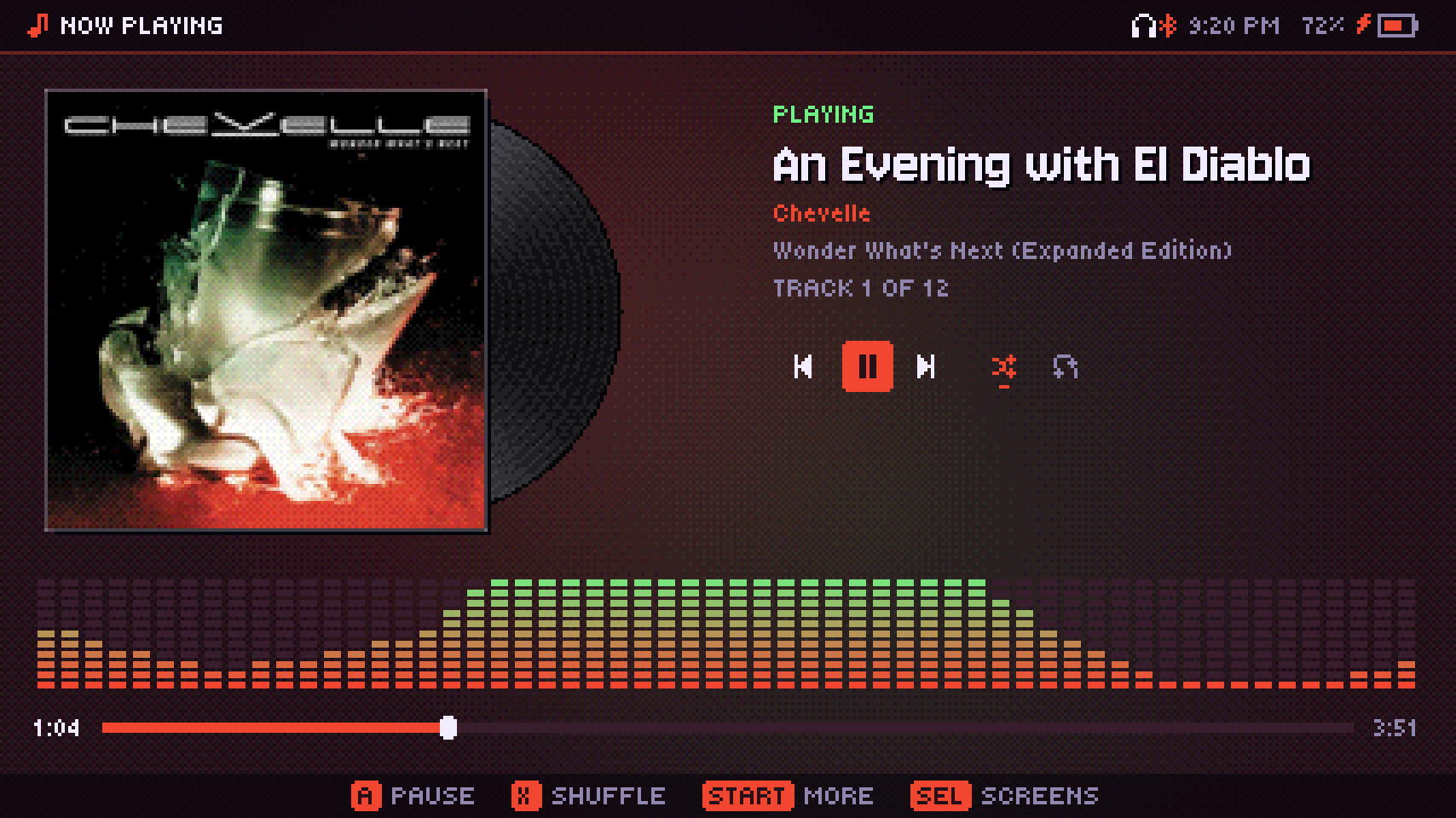
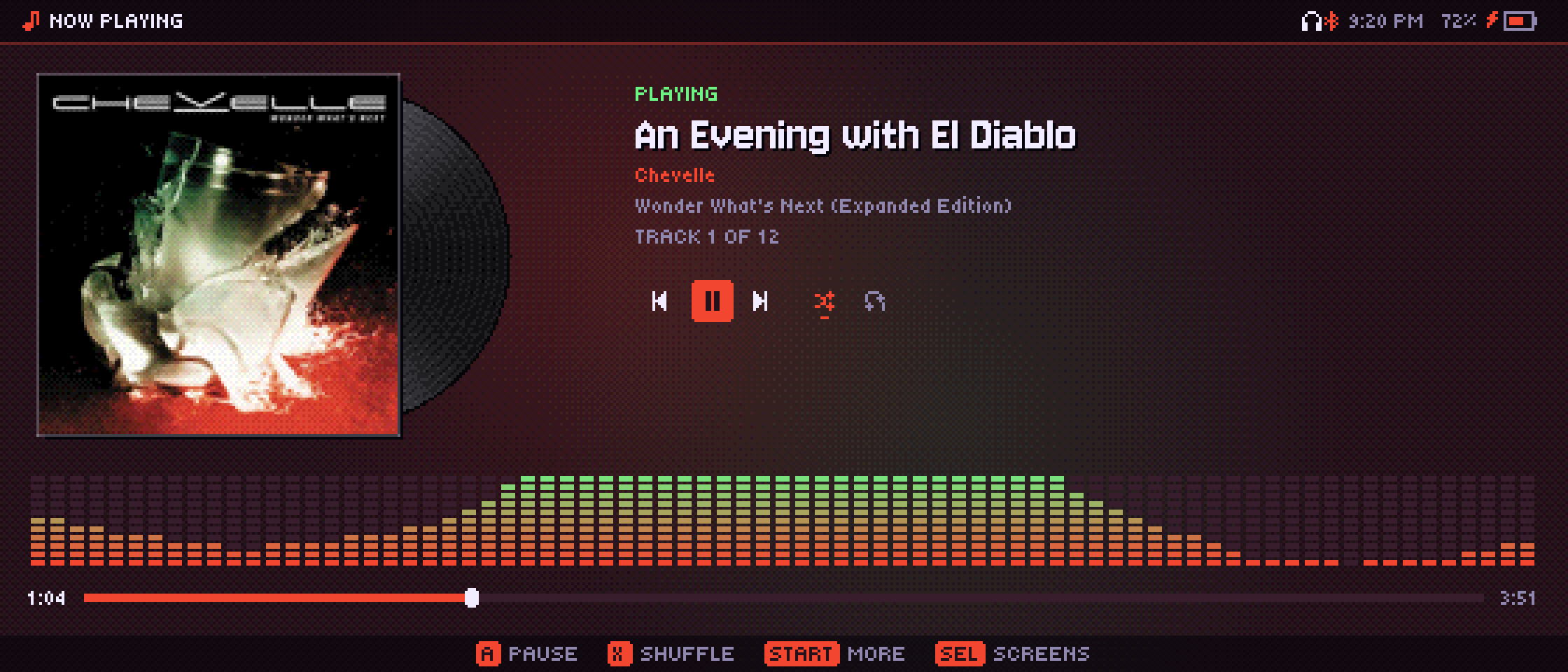
Through PortMaster
- Download audiofilus-portmaster.zip from the latest release.
- Install it with PortMaster, or unzip it into your ports folder.
- Open audiofilus from Ports and pick your music folder.
- Optional: put a yt-dlp binary in the app's yt-dlp/ folder to enable YouTube Music.
On a Linux or Windows PC, see Desktop.
Each system is detected at startup. Lid, power button, battery saver and volume use that system's own tools; on a desktop all of that is skipped.
One command
Written in Go without cgo for the handhelds. Codec libraries are loaded at runtime when the system has them.
# with Docker, nothing else to install
git clone https://github.com/juanvillacortac/audiofilus
cd audiofilus
docker build --target dist --output dist .

# or with Go installed
./build.sh
Both leave the desktop and arm64 binaries plus the PortMaster zip in dist/.
At home on your PC
The same player runs on Linux and Windows. On Linux it fits in like a native app on GNOME, KDE, Hyprland and Omarchy.
In your app launcher
Audiofilus shows up with its icon, and right-clicking it offers play/pause, next and previous. Window rules and docks recognize its window.
Media keys and your bar
It speaks MPRIS, so your keyboard's media keys, headphones and the desktop's media widget control it, with the cover and the song title. On Omarchy that works with nothing to set up.
Still plays in the background
Close the window and the music keeps going; open it again and it picks up where it is.
One line to install
curl -fsSL https://juanvillacortac.github.io/audiofilus/install.sh | sh
- Downloads the latest release for x86_64 or aarch64 into ~/.local/share/audiofilus.
- Links audiofilus and audiofilus-ui into ~/.local/bin.
- Adds Audiofilus to your app launcher. Run it again any time to update; your settings stay.
Or set it up by hand
- Download audiofilus-linux-amd64.tar.gz (or -arm64) from the latest release and unpack it anywhere.
- In that folder, run
./audiofilus desktop install. It adds the launcher entry and the icon to ~/.local/share. - Open Audiofilus from your app launcher. If you move the folder, run step 2 again.
Uninstall: audiofilus quit; audiofilus desktop uninstall; rm -rf ~/.local/share/audiofilus ~/.local/bin/audiofilus*
Windows 10 or later: download audiofilus-windows-amd64.zip, unzip it anywhere and run audiofilus-ui.exe.
Beyond handhelds
The same player, tuned for bigger screens and phones.
Desktop
Already runs on Linux and Windows, with launcher, media keys and crisp pixel scaling. Next: mouse controls and layouts made for big windows.
Android
Touch controls, a lock-screen player and background playback through the system's media session.
iOS
The same pixel interface on iPhone and iPad, with Control Center and AirPods controls.
Keep it playing
audiofilus is free and made in my spare time. If it plays on your handheld every day, a coffee helps me keep working on it and bring it to desktop and phones.